First: Turn Off the Connection and Check Your Network
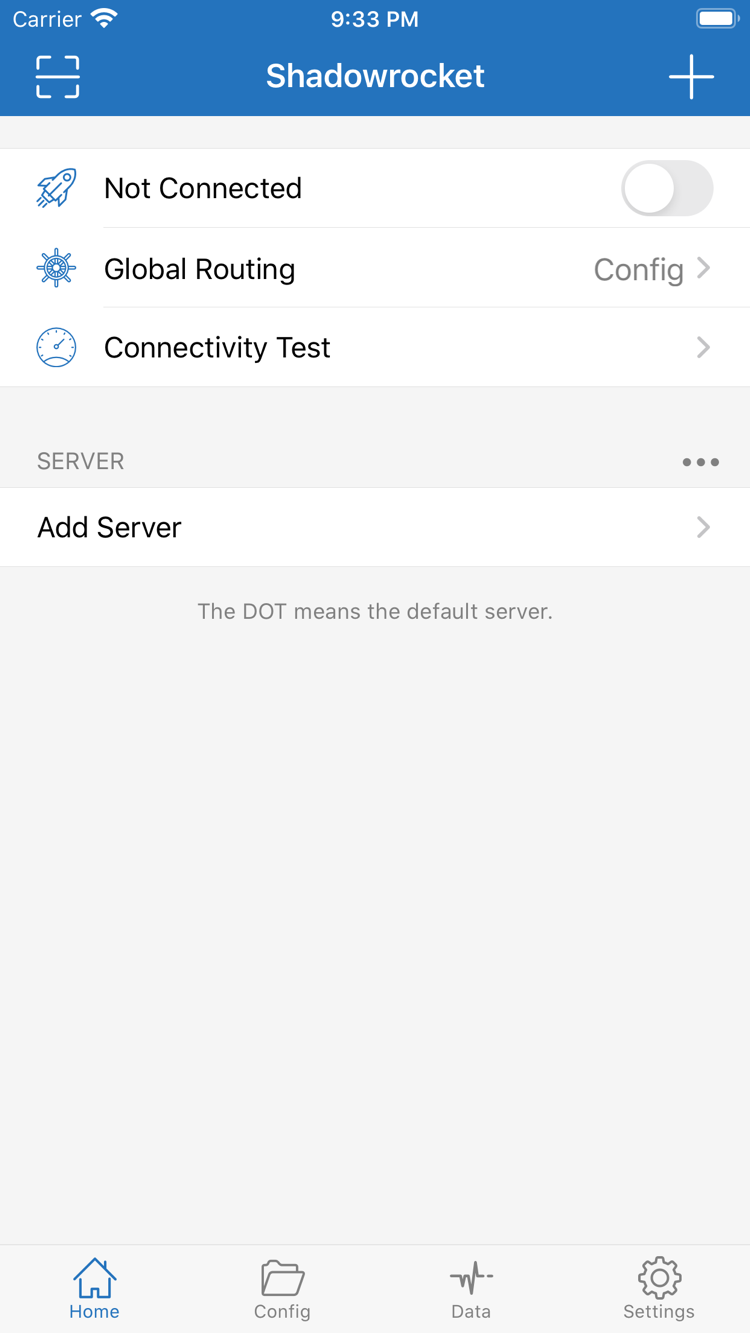
Turn off the connection on Home and open a page that normally works. If it still won’t load, check Wi-Fi, cellular service, or any network sign-in requirement first. Reconnect once your basic network is working. This comparison helps you avoid blaming every access issue on your subscription. Keep network conditions stable while testing.
Second: Check the Imported Details and Update Result
If SERVER has no usable entries, check whether the subscription link is complete, whether it contains extra spaces, and what result appeared during the update. Subscription links may contain account credentials; don’t post the full link in a public discussion. Check service status, validity period, and account limits with your service provider. Repeatedly tapping update won’t fix an account-side issue.
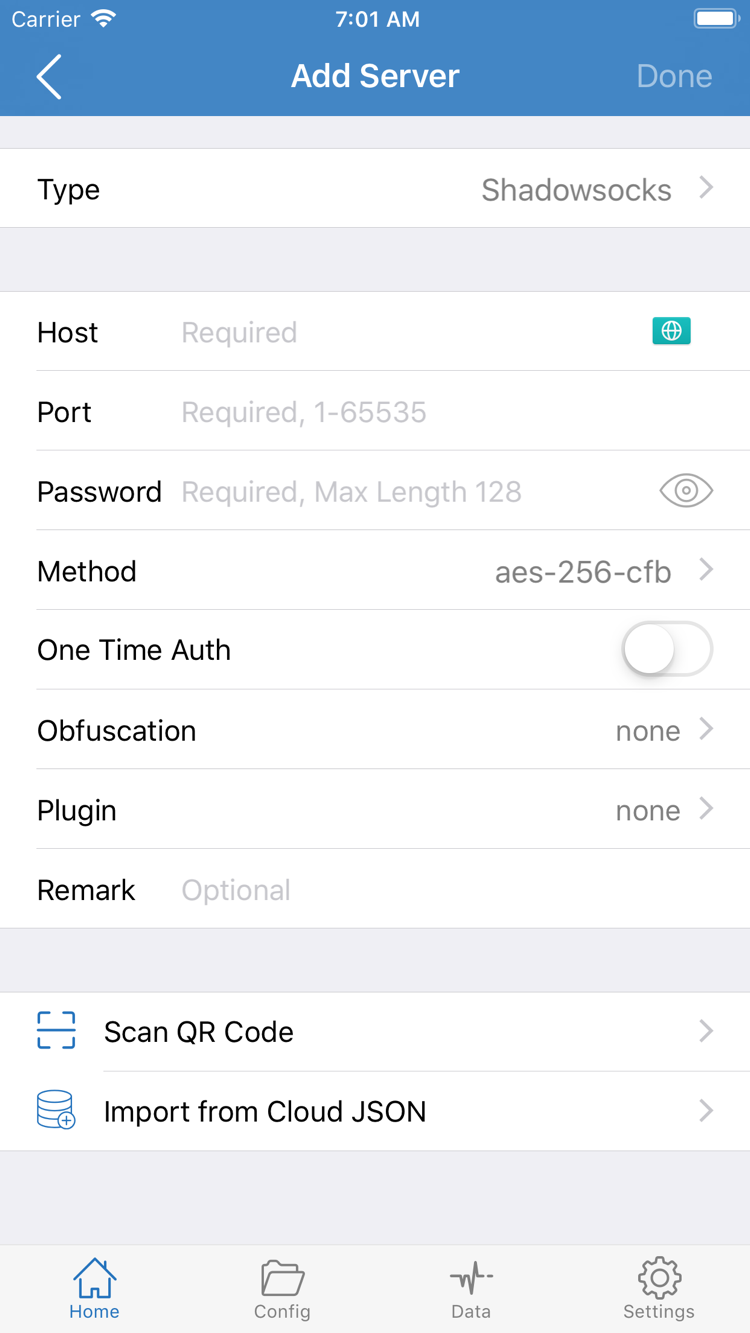
For manually added servers, recheck each field starting with Type, then verify Host, Port, authentication, and transport settings. Don’t change only the password while overlooking the protocol type. If the original information is missing required fields, ask your service provider for complete details instead of combining parameters from another entry.
Third: Use Modes to Isolate Routing Issues
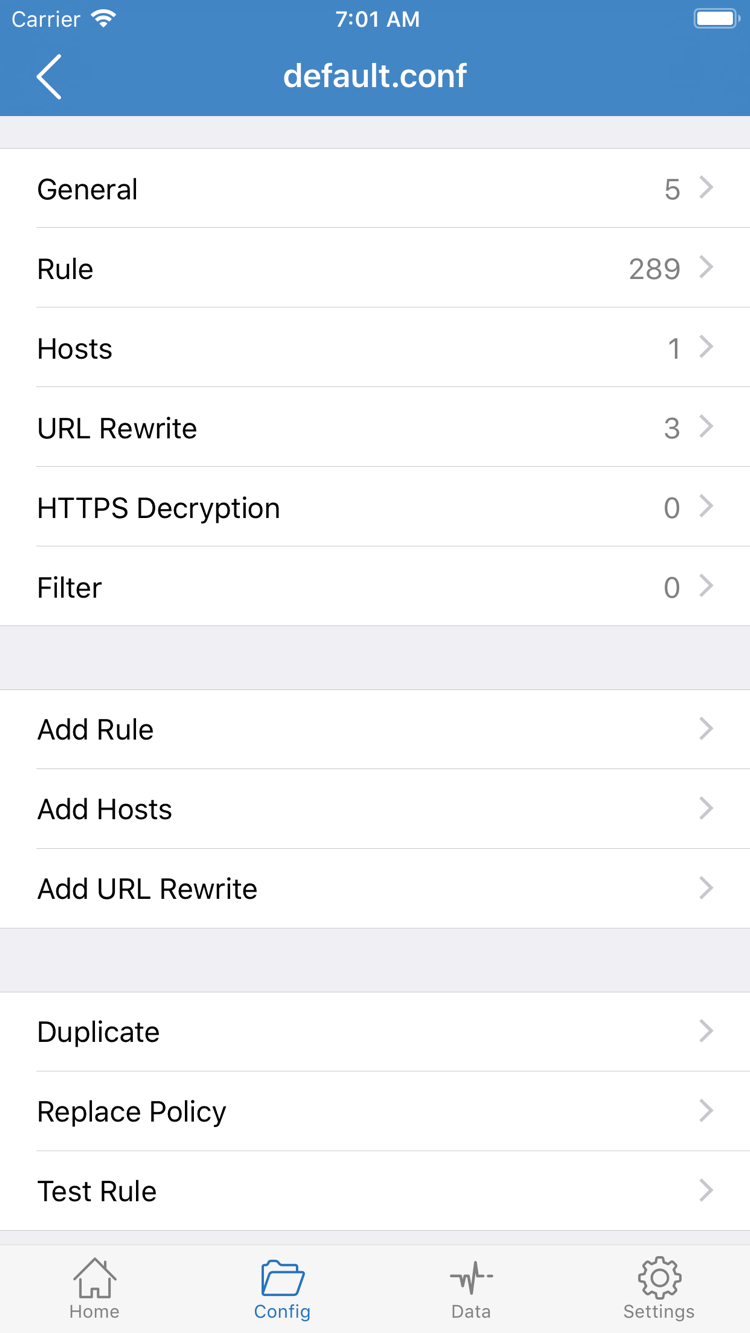
If the connection switch stays on but access doesn’t behave as expected, note the current configuration and mode, then briefly switch to Proxy and retest the same target. If it works in Proxy but fails in Config, focus on the active configuration, matching rules, and policy group targets. If both modes fail, check the server and network. Direct is only for comparing direct access; it cannot confirm that the proxy route works.
Fourth: Check Test Method and On Demand
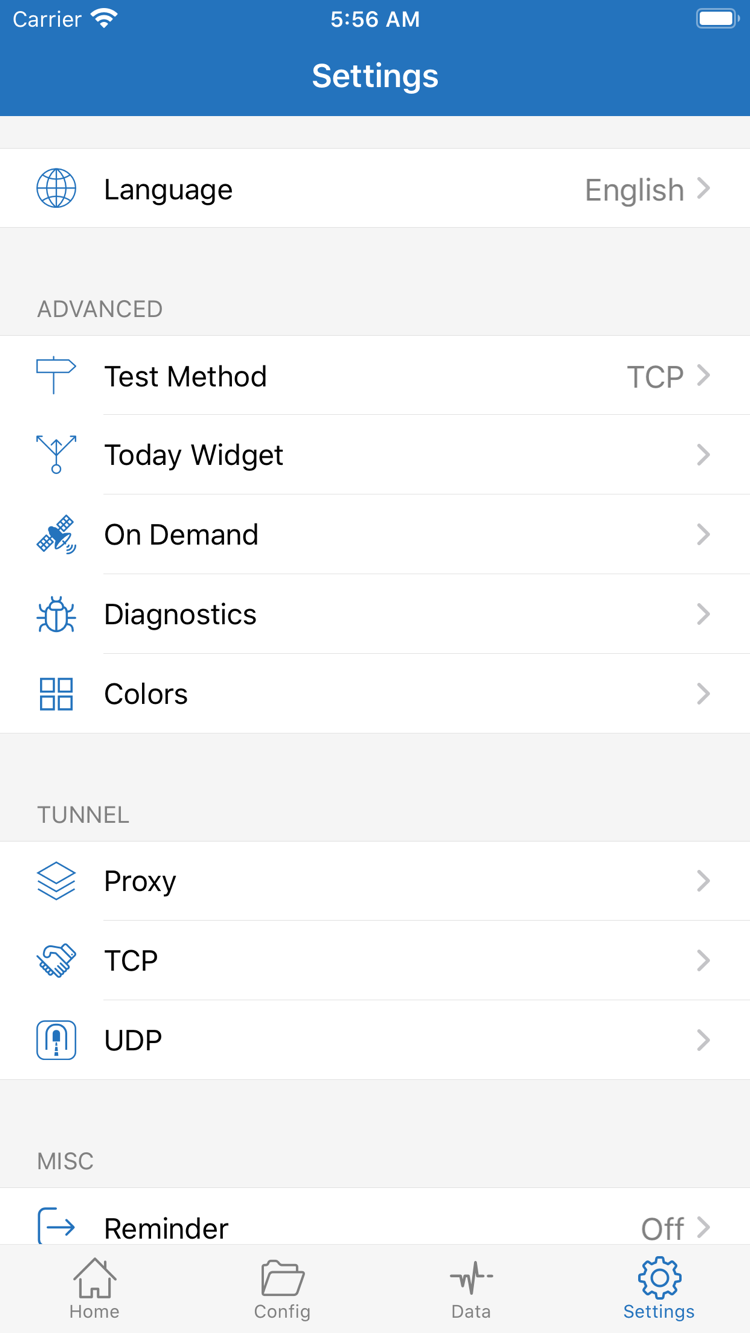
Open Settings and check Test Method to see which method produced the result. Don’t randomly change multiple options under Proxy, TCP, or UDP just to make a value appear. Adjust these settings only when you understand the issue and what each parameter does. After one change, return to Home and retest the same target to confirm that the change made a difference.
If the connection comes back after you turn it off, check whether On Demand has automatic connection rules that match your current network conditions. During troubleshooting, turn off On Demand to run a controlled manual test, then restore the conditions you need afterward. On Demand controls when a connection starts; it cannot fix incorrect server details.
Fifth: Keep Diagnostic Information and Continue Troubleshooting
If you still can’t identify the issue, review the diagnostic information available in Diagnostics. Record the network, mode, selected entry, and error message at the time the problem occurs. Before sharing anything, redact subscription URLs, passwords, UUIDs, account details, and identifiable access records. Share only the relevant details; they’re usually more useful than a screenshot of every setting.
For your next test, use the same server, mode, and target. Revert the last change if it didn’t help, then check the next item. This makes it easier to undo changes and identify the cause. For more common issues, see Troubleshooting. For subscription updates, organizing groups, deleting entries, and backups, see Managing Servers. Once these basic steps are complete, you can fine-tune rules and automatic connection settings for your needs.
Step complete when: You can identify which part of the setup is causing the issue and repeat the same test. After fixing it, return to Step 4 and verify access again.